
Table of Contents
If you’re looking for a simple way to watch live TV, sports, and international channels on your PC, IPTV on Windows is one of the most flexible and affordable options available in 2026. No extra hardware, no overpriced cable contracts. Just your existing computer, the right app, and a reliable provider. This guide walks you through everything, from choosing the best app to getting your channels live in minutes.
Why Americans Are Switching to IPTV on Windows in 2026
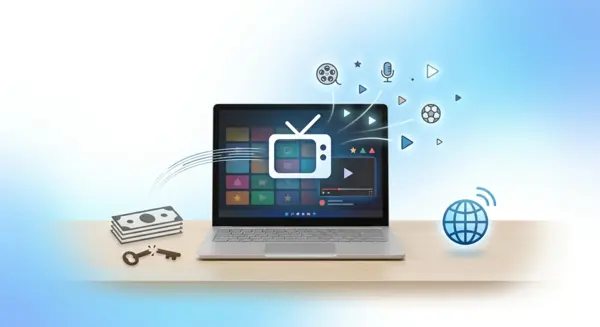
Cable bills in the US have been climbing for years. The average household now pays well over $100 a month for a package packed with channels nobody watches. IPTV on Windows gives you a smarter alternative, and millions of Americans have already made the switch.
Your PC Is Already the Perfect Streaming Device
You don’t need a new streaming stick, a smart TV, or any extra equipment. Whether you’re running Windows 10 or Windows 11, your laptop or desktop is more than capable of handling high-definition IPTV streams. It’s a device you already own, already use every day, and it’s sitting right there.
For people who work from home, students in apartments, or retirees who spend most of their day at a desk, this is an obvious win. One screen, one device, everything in one place.
IPTV vs. Cable: What Actually Makes Sense in 2026
Traditional cable locks you into long contracts, charges you for equipment rental, and still manages to cut out during the big game. IPTV works over your existing internet connection and gives you access to hundreds of live channels, on-demand content, and even 4K streams, without any of that friction.
The flexibility is the real selling point. Watch a soccer match on Sunday afternoon, catch the evening news at 7, and stream a movie later that night, all from the same app on your Windows PC.
Who Benefits Most From IPTV on Windows
IPTV on Windows works well for a wide range of users. College students in dorms who can’t set up satellite equipment. Families in rural areas where cable infrastructure is limited. Travelers who want to keep up with US news and sports from a hotel room. Cord-cutters who already dropped cable but want more than what free streaming offers.
If any of those situations sound familiar, you’re exactly the kind of person this guide was written for.
Best IPTV Apps for Windows in 2026
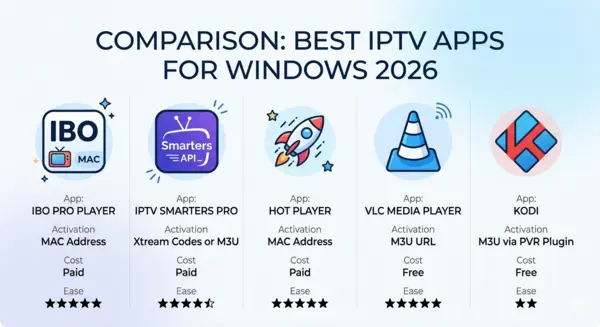
Choosing the right app makes a huge difference. Some are built specifically for IPTV with polished interfaces and stable performance. Others are free and open-source but require a bit more setup. Here’s a clear breakdown.
| App | Activation Method | Cost | Best For | Ease of Use |
|---|---|---|---|---|
| IBO Pro Player | MAC Address | Paid | Beginners, 50+ users | ⭐⭐⭐⭐⭐ |
| IPTV Smarters Pro | Xtream Codes or M3U | Paid | Multi-profile users | ⭐⭐⭐⭐ |
| Hot Player | MAC Address | Paid | Lightweight setups | ⭐⭐⭐⭐⭐ |
| VLC Media Player | M3U URL | Free | Budget-conscious users | ⭐⭐⭐⭐ |
| Kodi | M3U via PVR Plugin | Free | Tech-savvy users | ⭐⭐ |
IBO Pro Player: Simple Activation for Everyday Users
IBO Pro Player is widely considered the most beginner-friendly IPTV app for Windows. It uses MAC address activation, which means you never have to type in a server URL or remember a password. Your provider handles the connection on their end.
The interface is clean and easy to navigate. Channels are organized by category, and switching between live TV and on-demand content takes just a couple of clicks. If you’re setting this up for a parent or someone who isn’t comfortable with technology, IBO Pro Player is the right call.
IPTV Smarters Pro: Flexible and Feature-Rich
IPTV Smarters Pro supports both Xtream Codes API and M3U URL activation, making it a strong choice for users who want more control. You can manage multiple playlists, set up different profiles for different family members, and access your catch-up content easily.
The app has a modern interface and handles large channel lists without slowing down. It’s popular among users who subscribe to the best IPTV services because of how smoothly it handles high-channel-count streams.
Hot Player: Lightweight and Beginner-Friendly
Hot Player is a compact app that loads fast and stays out of your way. Like IBO Pro Player, it uses MAC address activation, so setup is minimal. It works well on older Windows machines that might struggle with heavier apps.
If your PC is a few years old and you’re worried about performance, Hot Player is worth trying first. It handles HD streams reliably without taxing your system.
Free Options: VLC and Kodi
VLC Media Player is free, already installed on millions of PCs, and works perfectly with an M3U URL. It’s not designed specifically for IPTV, but it gets the job done. The main limitation is that it doesn’t save your channel list between sessions automatically.
Kodi is more powerful but requires installing the PVR IPTV Simple Client plugin before it works with IPTV. It’s a great option if you enjoy customizing your setup, but it’s not ideal for users who just want something that works right away.
How to Set Up IPTV on Windows: Step-by-Step
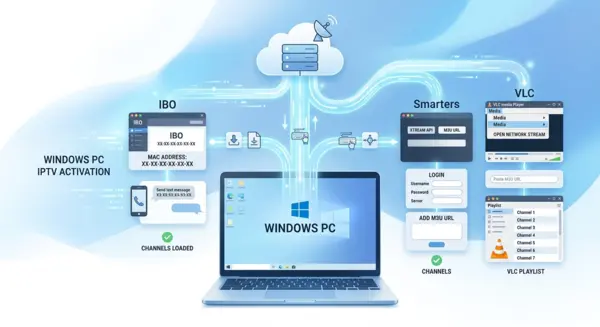
Setting Up IBO Pro Player (MAC Address Method)
- Download and install IBO Pro Player from the official website on your Windows PC.
- Open the app. Your unique MAC address will appear on the home screen. Take a screenshot or write it down.
- Send this MAC address to your IPTV provider via WhatsApp, email, or their support chat.
- Wait for activation confirmation, usually just a few minutes.
- Close the app completely, then relaunch it.
- Your channels will load automatically. You’re ready to watch.
Setting Up IPTV Smarters Pro (Xtream Codes or M3U)
- Download and install IPTV Smarters Pro on your PC.
- Open the app and select either “Login with Xtream Codes API” or “Add M3U URL” depending on what your provider sent you.
- Enter your username, password, and server URL, or paste in your M3U link.
- Tap “Add User” or “Confirm.” Your channel list will begin loading.
- Close and reopen the app to make sure everything syncs correctly.
- Browse your categories, live TV, movies, series, and start watching.
Setting Up VLC Media Player (Free M3U Method)
- Open VLC Media Player on your Windows PC.
- Click “Media” in the top menu, then select “Open Network Stream.”
- Paste your M3U URL from your IPTV provider into the input field.
- Click “Play.” VLC will load your channel list.
- Go to “View” and enable “Playlist” to see your channels organized in the side panel.
- For easier access next time, save the M3U URL as a shortcut on your desktop.
How to Choose the Best IPTV Services for Your Windows PC
The app is only half the equation. A great app connected to a poor server will still give you a frustrating experience. Choosing the right provider matters just as much.
| What to Check | Green Flag | Red Flag |
|---|---|---|
| Free trial offered | 24 hours or more available | No trial, pay first |
| US channel coverage | Major networks and sports included | Vague or unconfirmed channel list |
| Customer support | WhatsApp or live chat available | Email only, slow response |
| Server stability | Low buffering, high uptime | Frequent freezes reported |
| Windows compatibility | Supported apps listed clearly | No guidance on device setup |
| Pricing transparency | Clear plans, no hidden fees | Prices only shown after signup |
Key Features That Separate Good Providers From Bad Ones
The most important thing to look for is server quality. A provider running on strong infrastructure will give you smooth streams even during peak hours, like Sunday NFL games or major pay-per-view events. Ask about uptime guarantees and whether they offer multiple server options.
Support responsiveness is the second thing to check. If something stops working at 8pm on a Saturday, you want to reach someone quickly. Live chat or WhatsApp support is a much better sign than a ticket system with 48-hour response times.
Why NeoTv4k Stands Out Among IPTV Services in 2026
NeoTv4k offers stable, high-quality streaming across all major Windows apps, with full support for MAC address activation and Xtream Codes. Their channel lineup covers US networks, international content, sports packages, and 4K streams where available.
They also offer a free trial, so you can test everything on your own Windows PC before making any commitment. No credit card required upfront, no pressure. You simply connect, test the streams, check the channel quality, and decide from there.
For anyone comparing IPTV services in 2026, NeoTv4k is consistently one of the most reliable options available for US users.
Troubleshooting Common IPTV Issues on Windows
Most problems with IPTV on Windows come down to three things: your internet connection, the app cache, or the provider’s server. Start by restarting your router and relaunching the app before anything else.
Buffering and Freezing Fixes
Buffering usually means your connection can’t keep up with the stream quality. For HD channels, you need at least 10 Mbps. For 4K, aim for 25 Mbps or higher. If you’re on Wi-Fi, try switching to a wired Ethernet connection. It makes a noticeable difference for IPTV stability.
If your speed is fine but streams are still freezing, your provider’s server may be under heavy load. Contact their support team and ask to be switched to an alternate server.
App Won’t Launch or Channels Won’t Load
Some IPTV apps on Windows need administrator permissions to run properly. Right-click the app icon and choose “Run as Administrator.” If the app still won’t open, check that Windows is fully updated. Pending system updates can sometimes block apps from launching correctly.
For channels that fail to load after a successful installation, make sure the app was completely closed and freshly relaunched, not just minimized. A full restart of the app clears temporary cache issues that can prevent channels from appearing.
Activation Problems and How to Resolve Them
If you sent your MAC address to your provider and channels still aren’t showing up after relaunching the app, double-check that you sent the correct MAC address. Some apps display a device ID separately from the MAC, and it’s easy to copy the wrong one.
Contact your provider’s support directly via WhatsApp if the issue persists. Most activation problems are resolved within a few minutes once the correct information is confirmed on both ends.
FAQs About IPTV on Windows
Is IPTV legal to use on Windows in the US?
IPTV technology itself is completely legal. What matters is whether your provider holds the proper broadcasting rights for the content they offer. Always choose a legitimate, established provider to ensure you’re watching content through a licensed service.
What is the best free IPTV app for Windows?
VLC Media Player is the most accessible free option for Windows. It requires no account, no subscription, and works with any M3U URL your provider gives you. Kodi is a more powerful free alternative but requires additional plugin setup before it works with IPTV.
Can I watch 4K content through IPTV on my Windows PC?
Yes. Apps like IBO Pro Player and IPTV Smarters Pro support 4K streams. You’ll need a stable internet connection of at least 25 Mbps and a monitor that supports 4K resolution. Most modern Windows PCs handle 4K decoding without any issues.
Do I need a VPN to use IPTV on Windows?
A VPN is not required, but some users prefer one for privacy. If you’re traveling internationally and want to access US-based channels that may be geo-restricted, connecting through a US-based VPN server can help. Choose a VPN with fast servers to avoid adding buffering to your streams.
What’s the difference between MAC address activation and M3U activation?
MAC address activation links your subscription directly to your device’s unique identifier. Your provider activates your device on their end, and channels load automatically. M3U activation requires entering a URL or login credentials manually into the app. MAC activation is simpler and more secure for most users.
How many devices can I use with one IPTV subscription?
This depends on your provider’s plan. Most IPTV services in 2026 offer plans with one to five simultaneous connections. If you want to use IPTV on your Windows PC and other devices at the same time, look for a multi-connection plan when signing up.
Conclusion
Setting up IPTV on Windows is straightforward, affordable, and genuinely more flexible than anything cable has offered in years. Your PC is already capable of handling it. The right app takes minutes to configure. And with a quality provider behind it, the experience is smooth, reliable, and packed with content.
Whether you’re a cord-cutter who’s been waiting for a clean solution, a traveler who wants US channels from anywhere, or simply someone tired of paying too much for too little, IPTV on Windows in 2026 checks every box.
NeoTv4k offers a free trial so you can test the full experience on your Windows PC before spending anything. Browse the channel lineup, check the stream quality, put the app through its paces, and decide when you’re ready. There’s no better way to find out if it’s right for you than seeing it work for yourself.