
Table of Contents
If you’re tired of overpaying for cable and want a simpler way to watch live TV, IPTV on Chromecast is one of the best setups available in 2026. Setting up IPTV on Chromecast takes less than ten minutes and requires no technical experience. It works with your existing internet connection, requires no bulky equipment, and gets you hundreds of channels on your living room screen in minutes. This guide covers everything you need to know.
What Is Chromecast and Why Pair It with IPTV?
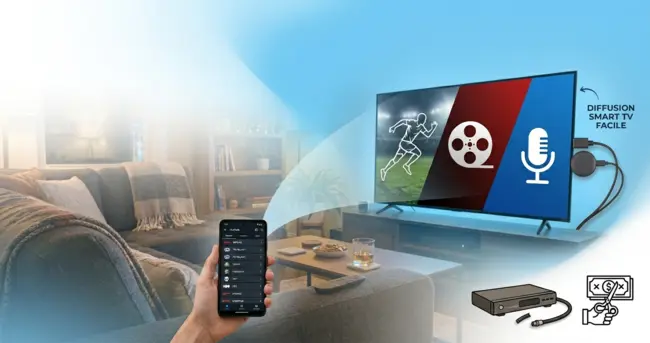
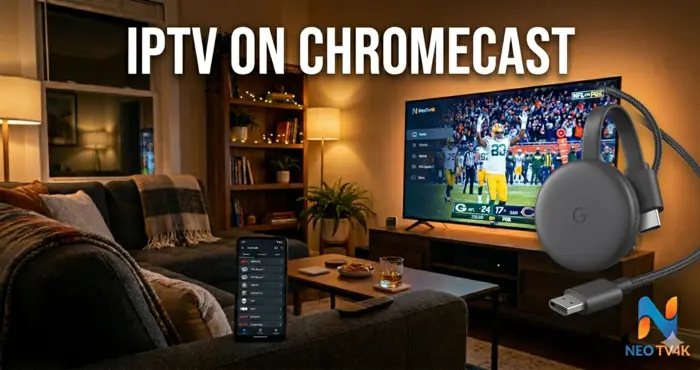
Chromecast is a small device that plugs into your TV’s HDMI port and streams content directly from the internet or from your phone. It turns any regular television into a smart screen without replacing your TV or adding a complicated setup.
When you combine it with a reliable IPTV service, the result is impressive. With IPTV on Chromecast, you get live sports, news, movies, and international channels, all on your big screen, with no cable box, no contracts, and no surprise fees at the end of the month.
For American households, this is becoming one of the most popular ways to cut the cord and still keep everything they love watching.
How Chromecast Works with IPTV Streaming
Many users discover that IPTV on Chromecast outperforms traditional cable in both flexibility and cost.
Chromecast receives a signal either from your phone or directly from an app installed on the device itself, depending on the model you have. The newer models with Google TV built in allow you to install IPTV apps directly, which gives you a cleaner, more independent experience.
Older models rely on your phone or tablet to cast the stream to the screen, which still works well but requires your phone to stay nearby.
Who Benefits Most from This Setup?
Families looking to ditch cable will find this setup affordable and flexible. Sports fans get live game coverage without paying for oversized bundles. Travelers and people living in rural areas with limited cable options benefit the most, since all they need is a stable internet connection.
What You Need Before Getting Started
Before configuring IPTV on Chromecast, make sure your device firmware is up to date for the best streaming performance.
Getting everything ready before you start will save you time and avoid frustration. The list is short and straightforward.
You will need a compatible Chromecast device, a stable internet connection, a Google account, and an active IPTV subscription. For 1080p streaming, a connection speed of at least 10 Mbps is recommended. For 4K content, aim for 25 Mbps or higher.
Most American internet providers offer speeds well above that, so this is rarely an issue for most households.
Compatible Chromecast Models and IPTV Performance
Not every Chromecast model performs the same way with IPTV apps. Here is a breakdown to help you choose the right one.
| Chromecast Model | Max Resolution | IPTV Compatible | Google TV Built-In | Approx. Price |
|---|---|---|---|---|
| Chromecast 3rd Gen | 1080p | Yes | No | ~$30 |
| Chromecast with Google TV (HD) | 1080p | Yes | Yes | ~$40 |
| Chromecast with Google TV (4K) | 4K HDR | Yes | Yes | ~$70 |
| Chromecast 1st / 2nd Gen | 1080p | Limited | No | Outdated |
If you are choosing between models, the Chromecast with Google TV gives you the most flexibility. You can install IPTV apps directly without depending on your phone to cast the stream, which makes the day-to-day experience much smoother.
How to Set Up IPTV on Chromecast Step by Step
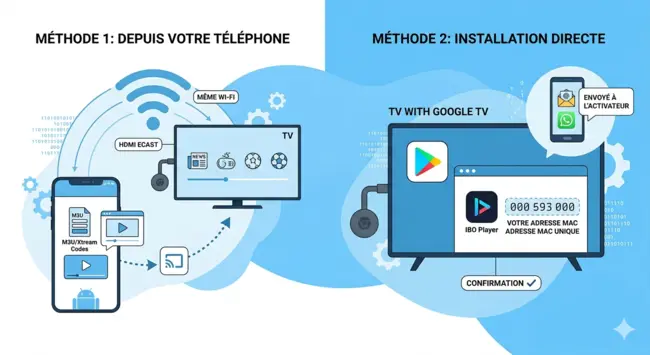
There are two main methods depending on your Chromecast model. Both work reliably when configured correctly.
Method 1 — Cast from Your Phone Using a URL/M3U Link
This method works with all Chromecast models and uses your Android phone as the controller.
- Download a Cast-compatible app to start streaming IPTV on Chromecast using your Android phone.
- Open the app and enter your IPTV connection details, either a URL/M3U link or your Xtream Codes login provided by your service
- Make sure your phone and Chromecast are connected to the same Wi-Fi network
- Tap the Cast icon inside the app and select your Chromecast from the list
- Choose any channel, press play, and the stream appears on your TV
- Your phone now acts as a remote control and can be used normally while streaming
Method 2 — Install IPTV Directly on Chromecast with Google TV (MAC Activation)
This method is recommended for Chromecast with Google TV and delivers a more stable, independent experience.
- On your Chromecast with Google TV, open the Google Play Store
- Search for a compatible IPTV app such as IBO Player Pro, ELK Player, or HOT Player
- Install the app, open it, and note the unique MAC address displayed on the screen. Take a photo so you don’t lose it
- Send this MAC address to your IPTV provider via WhatsApp, email, or their support chat
- Wait for the activation confirmation, which usually arrives within a few minutes
- Close the app completely and relaunch it. Your channels will load and you are ready to watch
Best IPTV Apps for Chromecast in 2026
Picking the right app is the key to getting the most out of IPTV on Chromecast every single day.
Choosing the right app makes a big difference in your daily experience. Some apps are built for simplicity, others for performance or 4K content. Here is a comparison to help you decide.
App Comparison for Chromecast IPTV
| App | Activation Method | Direct Install on Google TV | Cast from Phone | Best For |
|---|---|---|---|---|
| IBO Player Pro | MAC Address | Yes | Indirect | Stable daily use, multi-device homes |
| ELK Player | MAC Address | Yes | Indirect | Beginners, clean interface |
| HOT Player | MAC Address | Yes | Indirect | 4K content, live sports |
| M3U/URL Player | URL or Xtream Codes | Yes | Yes | Maximum flexibility |
Which App Fits Your Lifestyle?
No matter your viewing habit, IPTV on Chromecast adapts to your routine without any complicated reconfiguration.
Every household has different needs. Here is a simple guide to match the right app to your situation.
If you mainly watch news, local channels, and network shows, ELK Player is a solid choice. The interface is clean and there is very little to configure once you are set up.
If you have a family with different viewing preferences and multiple devices in the home, IBO Player Pro handles multi-profile use well and stays stable under heavier usage.
If you are a sports fan who wants live games in the best possible quality, HOT Player paired with a 4K Chromecast delivers a genuinely cinematic experience from your couch.
For users who travel frequently or switch between devices often, an M3U/URL-based app gives you the freedom to connect from anywhere without re-activating.
With any of these apps, pairing them with a trusted service that offers the best IPTV services on Chromecast services for American viewers makes all the difference in picture quality and reliability.
Common Problems and Quick Fixes
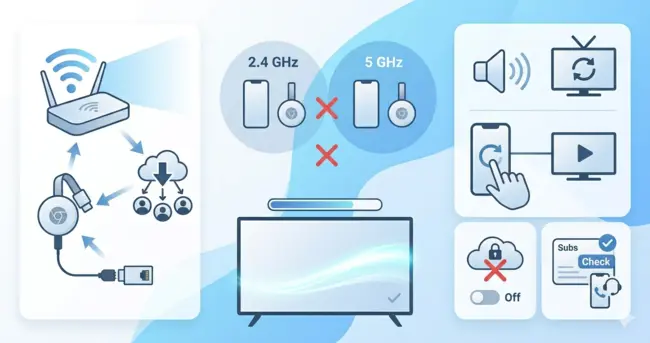
Most IPTV on Chromecast issues come down to network configuration, not the service itself.
Even with a solid setup, occasional issues can come up. Here are the most common ones and how to resolve them quickly.
Buffering and Image Quality Issues
Buffering is almost always a network issue rather than an app problem when watching IPTV on Chromecast. Start by moving your Chromecast closer to your Wi-Fi router or switching to a 5 GHz band if your router supports it.
If the problem continues, check whether other devices on the same network are using heavy bandwidth, such as downloads or video calls. Temporarily reducing the stream quality inside the app settings can also help stabilize playback.
Using a wired Ethernet connection through a compatible adapter is the most effective fix for persistent buffering.
Sound Problems and App Connectivity Errors
If the audio is missing or out of sync, check your TV volume first, then look for an audio sync setting inside the IPTV app. Restarting the app completely often resolves this.
If the app cannot find your Chromecast, confirm that both your phone and your Chromecast are on the exact same Wi-Fi network. Many routers broadcast on both 2.4 GHz and 5 GHz bands, and if your devices are on different bands, they will not detect each other. Connecting both to the same band solves this immediately.
If channels stop loading after activation, close the app fully and reopen it. If the issue continues, contact your IPTV provider to confirm your subscription is active.
Note: if you use a VPN on your network, it can sometimes interfere with both IPTV streaming and the Cast function. Try disabling it temporarily to see if that is the cause.
Frequently Asked Questions About IPTV on Chromecast
Does IPTV work on all Chromecast models?
Yes, though the experience varies. Newer models with Google TV allow direct app installation, which is more convenient and more stable. Older models still work by casting from an Android phone, which is functional but slightly less seamless.
Do I need a paid Google account to use Chromecast for IPTV?
No. A free Google account is all you need to set up and use Chromecast. Google does not charge anything additional to run IPTV apps through its platform.
Can I use my Chromecast while traveling or outside my home state?
Absolutely. Chromecast is a compact device that fits in any bag. As long as you have a stable internet connection at your destination, whether that is a hotel, a vacation rental, or a family home across the country, your IPTV service travels with you.
Can I watch live sports through Chromecast with IPTV?
Yes, and it is one of the most popular uses. Live football, basketball, baseball, soccer, and combat sports are all accessible through quality IPTV services. A stable connection of at least 10 Mbps ensures smooth live playback without interruptions.
How does the NeoTv4k free trial work?
It is completely commitment-free. Reach out via WhatsApp or the support chat, and the team will set you up with full access for testing. No credit card is required. Use the trial to test the channels you watch most, including live sports or prime-time network shows, so you know exactly what you are getting before subscribing.
Is IPTV legal in the United States?
IPTV on Chromecast as a technology is completely legal. It is simply a method of delivering television content over the internet rather than through cable or satellite. What matters is choosing a provider that operates transparently, offers genuine customer support, and lets you try before you buy. That is the standard NeoTv4k holds itself to.
What internet speed do I actually need for IPTV on Chromecast?
For standard HD content, 10 Mbps is sufficient. For 4K HDR streams, 25 Mbps or more is recommended. Most broadband plans in the US easily exceed these numbers, so the majority of users will have no issues at all.
Why NeoTv4k Is the Right IPTV Choice for American Viewers
Thousands of American cord-cutters have already switched to IPTV on Chromecast and never looked back.
NeoTv4k is built specifically for viewers in the United States who want live TV, sports, movies, and international content without the cost and inflexibility of a traditional cable contract.
The channel lineup covers major American networks, live sports, news, and a wide range of international programming. Everything is optimized for the devices Americans already own, including Chromecast, Fire Stick, Smart TVs, and mobile phones.
If you are looking for reliable IPTV services with consistent performance and genuine support, NeoTv4k delivers that without the usual complications. Discover what best IPTV services should actually feel like with a setup that works from day one.
Start Your Free Trial Today
NeoTv4k offers a free trial so you can test the full service before making any commitment. Stream your preferred channels with IPTV on Chromecast, check the picture quality, test the sports coverage, and see how it performs on your home network with zero risk.
No contracts. No credit card. Just honest streaming.
Conclusion
If you have been on the fence, now is the perfect time to try IPTV on Chromecast risk-free with NeoTv4k.
IPTV on Chromecast remains the most accessible cord-cutting solution for American households in 2026.
IPTV on Chromecast is one of the most practical and affordable ways to enjoy live television in 2026. The setup takes minutes, the hardware costs less than a single month of cable, and the flexibility to stream from anywhere gives you a freedom that traditional TV simply cannot match.
Whether you are setting up a family room, cutting the cord for the first time, or looking for a better option in an area where cable coverage is weak, this combination delivers real value. Start with the NeoTv4k free trial, get everything running with IPTV on Chromecast, and you will wonder why you waited this long to make the switch.