Table of Contents
If you want to watch live TV, sports, and on-demand content directly on your iPhone, IPTV is one of the smartest moves you can make in 2026. The right app and a stable internet connection are all you need. This guide covers the best IPTV apps available on iOS, how to install them step by step, and how to avoid the most common issues, so you can start streaming in minutes.
What Is IPTV on iPhone and How Does It Work?
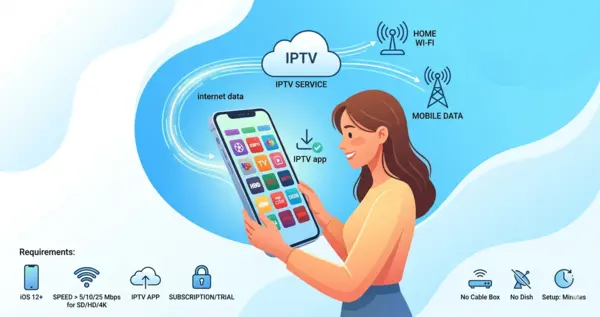
IPTV stands for Internet Protocol Television. Instead of relying on a cable box or satellite dish, your channels and content are delivered through your internet connection, just like any video you stream online. Your iPhone receives that signal through a dedicated IPTV app, which organizes everything into a clean, easy-to-browse TV guide.
It works on any modern iPhone, requires no special hardware, and takes only a few minutes to set up. Whether you are at home on Wi-Fi or traveling on a 5G connection, your channels follow you everywhere.
What You Need Before You Start
Before installing anything, make sure you have these four things ready:
- An iPhone running iOS 12 or later
- A stable Wi-Fi connection or a 4G LTE or 5G mobile data plan
- An IPTV app downloaded from the App Store
- An active IPTV subscription, or a free trial to get started
If you are still exploring your options, NeoTv4k offers some of the best IPTV services available today, with a free trial so you can test everything before committing.
Internet Speed Requirements for Smooth Streaming
Your streaming quality depends directly on your connection speed. Here is what to expect at each level:
| Quality Level | Minimum Speed Required |
|---|---|
| SD (Standard Definition) | 5 Mbps |
| HD (720p / 1080p) | 10 to 20 Mbps |
| 4K Ultra HD | 25 Mbps and above |
On home Wi-Fi, most users will have no issues at all. On mobile data, results vary by location and carrier, but 5G and strong LTE connections handle HD streaming comfortably.
Best IPTV Apps for iPhone in 2026
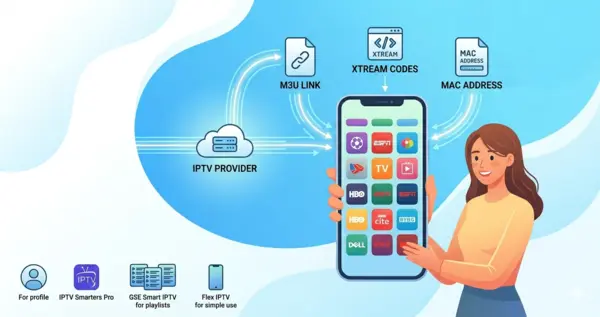
There are dozens of IPTV apps on the App Store, and most of them look similar at first glance. The difference shows up in daily use, in how fast channels load, how stable the stream is, and how easy the interface feels after a long day. Here are the top picks.
IPTV Stream Player
IPTV Stream Player is consistently one of the most downloaded IPTV apps on iOS, and the reasons are obvious once you use it. The interface is clean and minimal, channels load almost instantly, and it handles both M3U links and Xtream Codes without any fuss.
It is the kind of app that just works. No confusing menus, no setup headaches. Perfect for anyone switching from traditional cable who does not want to spend an evening troubleshooting.
Key features include:
- Full support for M3U URLs and Xtream Codes
- Fast channel loading even with large playlists
- Built-in search, favorites, and viewing history
- Streaming quality up to 4K depending on your connection
- Free to download on the App Store
IBO Player Pro
IBO Player Pro takes a different approach. Its interface is modeled after a traditional cable TV guide, with a program grid, show descriptions, and channel categories that feel immediately familiar. If you grew up flipping through a cable guide, this app will feel like home.
What makes it stand out is its MAC address activation system. Instead of typing in long URLs or passwords, you simply share your device’s unique MAC address with your provider and activation happens on their end. Simple, clean, and hard to mess up.
Highlights include:
- Classic TV guide layout with full EPG support
- MAC address activation, no manual URL entry needed
- Compatible with Xtream Codes, M3U, and portal connections
- Great for households with multiple viewers
- Easy to manage channel groups and favorites
IPTV Smarters Pro
A solid and well-known option across the IPTV community. IPTV Smarters Pro supports both Xtream Codes and M3U connections, and it comes with a nicely organized on-demand section for movies and series. It also supports multiple user profiles, which is useful for families.
GSE Smart IPTV
GSE Smart IPTV is the go-to choice for users who want flexibility. It lets you manage several M3U playlists at the same time, making it ideal if you are testing different providers or maintaining separate channel lists for different purposes.
Flex IPTV
Flex IPTV keeps things simple and stable. It supports M3U imports by URL or local file, loads quickly, and does not try to do too much. A solid choice for users who want a no-frills experience that just performs reliably.
App Comparison Table
| App | M3U | Xtream Codes | MAC Activation | EPG | Ease of Use | iOS Native |
|---|---|---|---|---|---|---|
| IPTV Stream Player | Yes | Yes | No | Partial | Very Easy | Yes |
| IBO Player Pro | Yes | Yes | Yes | Full | Easy | Yes |
| IPTV Smarters Pro | Yes | Yes | No | Full | Moderate | Yes |
| GSE Smart IPTV | Yes | Partial | No | Basic | Moderate | Yes |
| Flex IPTV | Yes | No | No | Basic | Easy | Yes |
Which App Fits Your Lifestyle?
Not every app suits every person. Your daily habits and viewing style matter more than specs. Here is a quick match to help you choose without overthinking it:
User Profile Match Table
| Your Situation | Best App |
|---|---|
| Switching from cable, want simplicity | IPTV Stream Player |
| Family with kids, want a traditional TV guide | IBO Player Pro |
| Traveler, need reliable mobile streaming | IPTV Stream Player |
| Power user who manages multiple playlists | GSE Smart IPTV |
| Prefer clean, minimal interfaces | Flex IPTV |
How to Set Up IPTV on iPhone: Step-by-Step
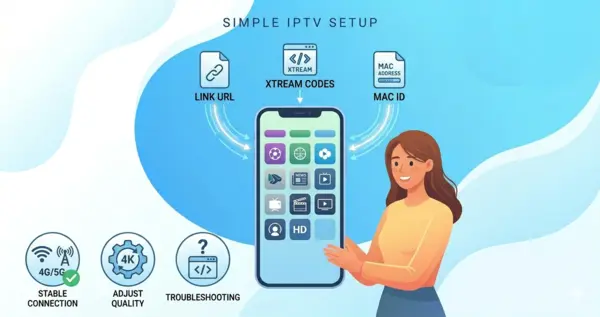
All the apps in this guide are available on Apple’s App Store. No jailbreaking, no sideloading, no workarounds needed. Here is how to get set up depending on your chosen app.
Method 1: M3U or Xtream Codes (IPTV Stream Player, Smarters, GSE, Flex)
- Open the App Store, search for your chosen app, and tap Get to install it.
- Open the app and look for an option to add a playlist or new connection.
- Choose your connection type: select M3U URL if your provider gave you a link, or Xtream Codes if you received a username, password, and server address.
- Enter your credentials exactly as provided by your IPTV service.
- Tap Load or Confirm. Your channel list will appear within seconds.
- Browse your channels, set up favorites, and enjoy.
Tip: If your provider offers both M3U and Xtream Codes, go with Xtream Codes. The connection tends to be more stable and channels reload faster after a brief interruption.
Method 2: MAC Address Activation (IBO Player Pro)
- Download and install IBO Player Pro from the App Store.
- Open the app for the first time. You will see a unique MAC address and possibly an activation key displayed on the screen. Take a screenshot so you have it saved.
- Send this information to your IPTV provider via WhatsApp, email, or their support chat.
- Wait for your provider to confirm that activation is complete. This usually takes just a few minutes.
- Close the app completely, then reopen it.
- Your channels are now loaded and ready to watch.
Tips to Get the Best IPTV Experience on iPhone
A few small adjustments can make a noticeable difference in your daily viewing experience:
- Always prefer Wi-Fi at home for the most stable connection
- If buffering starts, drop the quality from 4K to 1080p, the difference is barely visible on a phone screen and the stability improves significantly
- Enable low-latency mode in your app settings if available, especially for live sports
- On mobile data in areas with weaker coverage, switching to SD quality prevents most interruptions
- Clear the app cache once a week if you notice slower channel loading over time
- Restart your router if streams feel sluggish in the evening, when network traffic is highest
Common IPTV Problems on iPhone and How to Fix Them
Even the best IPTV services can run into occasional hiccups. Here is a quick reference for the issues users report most often and how to solve them fast:
| Problem | Likely Cause | Quick Fix |
|---|---|---|
| Buffering or choppy video | Connection too slow or congested | Lower video quality or switch to Wi-Fi |
| Black screen on launch | Stream temporarily down | Switch channels and return, or restart the app |
| Channels not loading | Expired credentials or wrong URL | Contact your provider to verify your access details |
| Audio without video (or reverse) | Codec incompatibility | Toggle between software and hardware decoding in settings |
| App crashes on startup | Corrupted cache or outdated iOS | Delete the app, reinstall, and update iOS |
| Empty or outdated EPG | EPG URL not configured | Request the EPG URL from your provider and enter it in settings |
FAQs About IPTV on iPhone
Is IPTV legal in the United States?
The technology itself is completely legal. What matters is the content your provider is licensed to distribute. Always choose a reputable provider that is transparent about their content rights.
Do I need to jailbreak my iPhone to use IPTV?
No. Every app listed in this guide is available directly on Apple’s App Store. No modifications to your device are needed at any point.
Can I watch IPTV on mobile data?
Yes. A solid 4G LTE or 5G connection handles HD streaming well. Just keep an eye on data usage if your plan has a cap. One hour of HD streaming typically uses between 1 and 3 GB.
What is the best IPTV app for iPhone?
It depends on what you value most. For ease of use and fast setup, IPTV Stream Player is hard to beat. For a familiar cable-style interface with MAC activation, IBO Player Pro is the stronger choice.
How do I get a free IPTV trial on iPhone?
NeoTv4k offers a free trial so you can test the service on your iPhone before deciding on a subscription. No pressure, no commitment upfront.
Can I use IPTV on other devices too?
Absolutely. Most IPTV services work across smart TVs, Android boxes, tablets, and computers. The apps and setup methods vary slightly by device, but the core experience is the same.
What happens if my channels stop working mid-stream?
Usually it is a temporary server issue or a drop in connection. Try switching to another channel and coming back, restart the app, or check your internet speed. If the problem persists, reach out to your provider’s support team.
Conclusion
Getting IPTV running on your iPhone is genuinely one of the easiest upgrades you can make to your daily entertainment setup. Pick the right app for your habits, follow the setup steps matching your connection type, and you can be watching live TV in under ten minutes.
For anyone in the US looking for a reliable, well-supported service with a strong channel lineup, checking out the best IPTV services at NeoTv4k is a natural first step. And since NeoTv4k offers a free trial, there is no risk in giving it a proper test on your iPhone before deciding anything.